Getting Started
This guide will walk you through installing MindfulMedia and setting up your first media library.
Installation
From WordPress Admin
- Go to Plugins → Add New
- Click Upload Plugin
- Select the
mindfulmedia.zipfile - Click Install Now
- Click Activate Plugin
Manual Installation
- Download the plugin ZIP file
- Extract to
/wp-content/plugins/mindfulmedia/ - Go to Plugins in WordPress admin
- Find "MindfulMedia" and click Activate
Initial Setup
After activation, MindfulMedia automatically:
- Creates the
mindful_mediacustom post type - Registers all taxonomies (Teachers, Topics, Categories, Playlists, Types)
- Creates a "My Library" page with the library shortcode
- Sets up default settings
First Steps
1. Configure Basic Settings
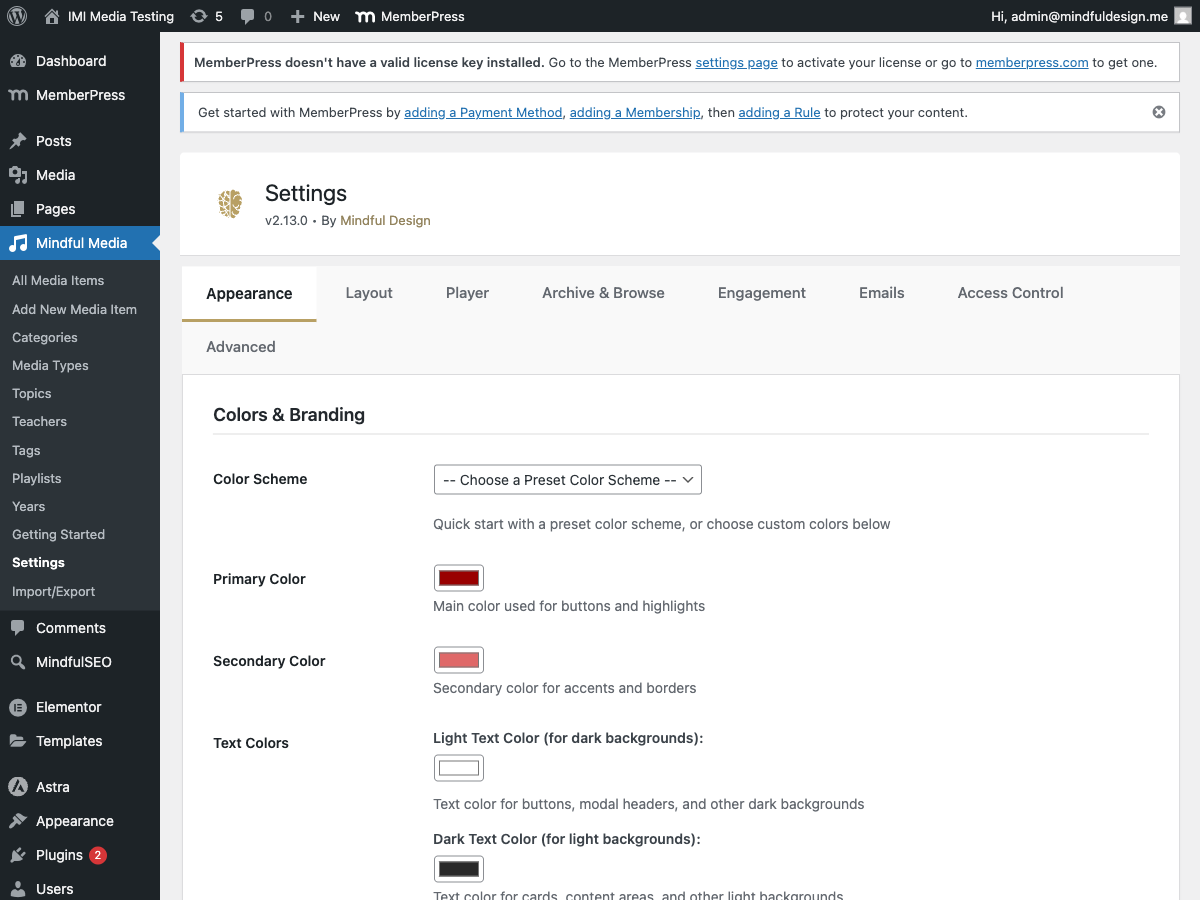
Go to MindfulMedia → Settings and configure:
- Appearance - Set your brand colors
- Layout - Configure card sizes and grid layouts
- Player - Set player behavior and autoplay options
2. Create Your First Media Item
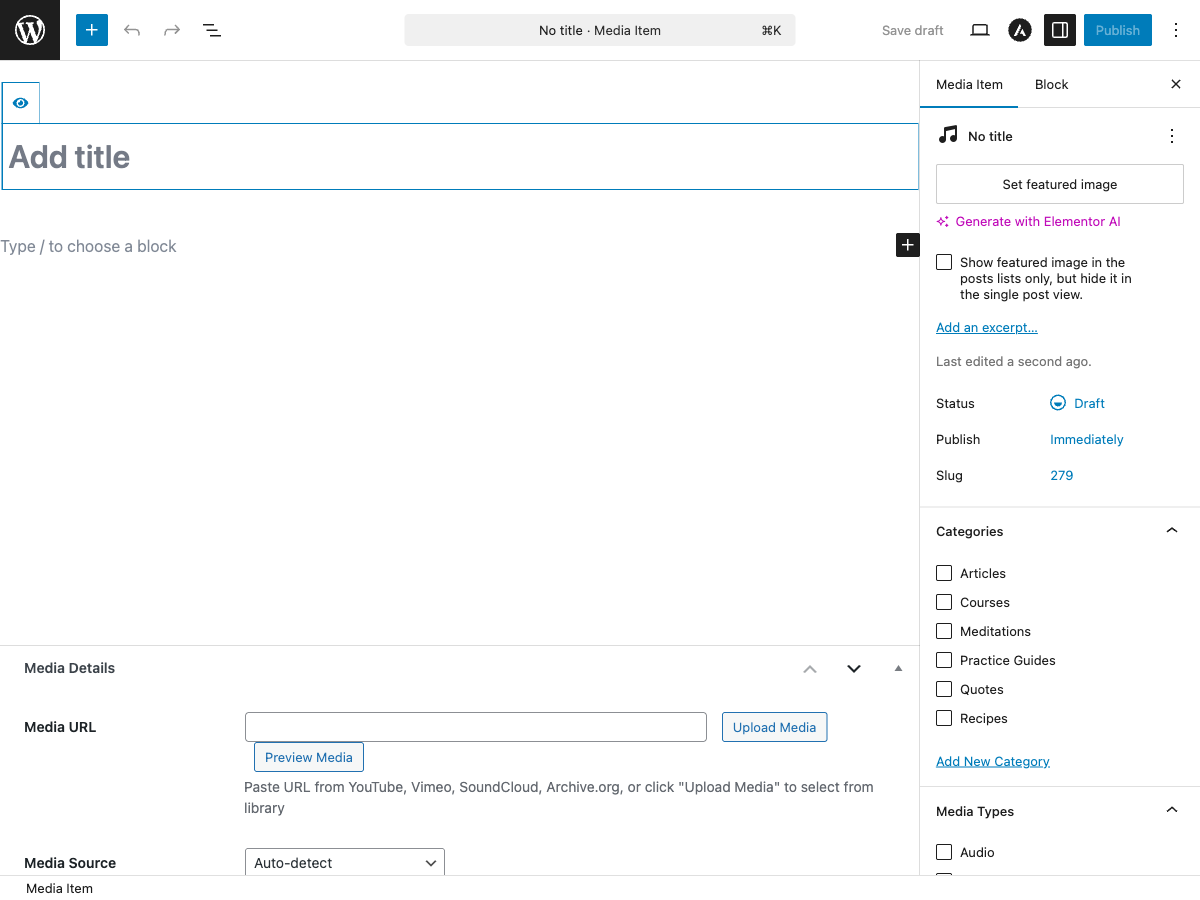
Go to MindfulMedia → Add New to create your first media item:
- Enter a Title for your media
- Add a Featured Image (thumbnail)
- In the Media Source section:
- Select the source type (YouTube, Vimeo, SoundCloud, etc.)
- Paste the video/audio URL
- Set the Duration (or click "Fetch Duration" to auto-detect)
- Assign Taxonomies:
- Teacher (who created the content)
- Topic (subject matter)
- Category (content type)
- Playlist (optional, for series)
- Click Publish
3. Create a Browse Page
Create a new page and add the browse shortcode:
Or use the MindfulMedia Browse Gutenberg block.
This creates a full browsing experience with:
- Navigation tabs (Home, Teachers, Topics, Playlists)
- Featured content section
- Category sliders
4. Create a Media Archive Page
For a simple grid of all media items:
Setting Up Taxonomies
Teachers
Teachers represent content creators or instructors.
- Go to MindfulMedia → Teachers
- Add a new teacher with:
- Name
- Description/Bio
- Featured Image (profile photo)
Topics
Topics categorize content by subject matter.
- Go to MindfulMedia → Topics
- Add topics like "Meditation", "Yoga", "Mindfulness"
- Add featured images for visual browsing
Playlists (Series)
Playlists group related content in order.
- Go to MindfulMedia → Playlists
- Create a playlist (e.g., "Beginner Course")
- Optionally create child playlists as "modules"
- Enable password protection if needed
Categories
Categories provide additional organization.
- Go to MindfulMedia → Categories
- Add categories with featured images
Creating Playlists
Playlists are powerful for creating courses and series:
Simple Playlist
- Create a playlist: MindfulMedia → Playlists → Add New
- Assign media items to it when editing each item
- Items appear in the playlist sidebar when viewing
Modular Playlist (Course Structure)
- Create a parent playlist (e.g., "Complete Course")
- Create child playlists as modules:
- "Module 1: Introduction"
- "Module 2: Fundamentals"
- "Module 3: Advanced"
- Assign videos to the appropriate module
- The modal player shows a collapsible module structure
Password Protected Playlist
- Edit the playlist
- Enable "Password Protection"
- Set a password
- Only users with the password can view the content
Adding Media to Pages
Using Shortcodes
<!-- Full browse page -->
[mindful_media_browse]

<!-- Media grid with filters -->
[mindful_media_archive per_page="12" category="meditation"]

<!-- Single media embed -->
[mindful_media id="123"]

<!-- Embed a playlist -->
[mindful_media playlist="beginner-course"]

<!-- Category row slider -->
[mindful_media_row taxonomy="media_topic" title="Browse by Topic"]
Using Gutenberg Blocks
- Edit a page with Gutenberg
- Click + to add a block
- Search for "MindfulMedia"
- Choose from:
- MindfulMedia Browse - Full browse layout
- MindfulMedia Archive - Grid with filters
- MindfulMedia Embed - Single item or playlist
- MindfulMedia Category Row - Horizontal slider
Using Elementor
- Edit a page with Elementor
- Search widgets for "MindfulMedia"
- Drag the widget to your canvas
- Configure options in the sidebar
What's Next?
Now that you have the basics set up: