Playlists
Playlists allow you to group and organize media content into courses, series, and collections.
Overview
Playlists in MindfulMedia support:
- Sequential Content - Ordered media items
- Modular Structure - Group into chapters/modules
- Password Protection - Restrict access
- Progress Tracking - Track completion
Creating Playlists
Basic Playlist
- Go to MindfulMedia → Playlists
- Click Add New
- Enter a name and description
- Optionally add a featured image
- Click Add New Playlist
Assigning Media to Playlists
- Edit a media item
- In the Playlists sidebar, check the desired playlist
- Save the media item
Playlist Structure
Simple Playlist
All items in a flat list:
Beginner Meditation Course
├── Introduction to Meditation
├── Breathing Techniques
├── Body Scan Practice
├── Guided Meditation #1
└── Guided Meditation #2
Modular Playlist (Course Structure)
Create child playlists for chapters:
Complete Yoga Course (Parent)
├── Week 1: Foundations (Child/Module)
│   ├── Day 1 - Introduction
│   ├── Day 2 - Sun Salutation
│   └── Day 3 - Standing Poses
├── Week 2: Building Strength (Child/Module)
│   ├── Day 1 - Core Work
│   ├── Day 2 - Arm Balances
│   └── Day 3 - Backbends
└── Week 3: Advanced (Child/Module)
    ├── Day 1 - Inversions
    └── Day 2 - Final Practice
Creating Modules
- Create the parent playlist first
- Create child playlists
- Set Parent Playlist to the main course
- Assign videos to the appropriate module
Password Protection
Restrict playlist access with passwords.
Enabling Protection
- Edit the playlist
- Check Enable Password Protection
- Enter a password
- Save
User Experience
- Playlist cards show a lock icon
- Users must enter password to view
- Password stored in cookie after entry
- Access persists for the session
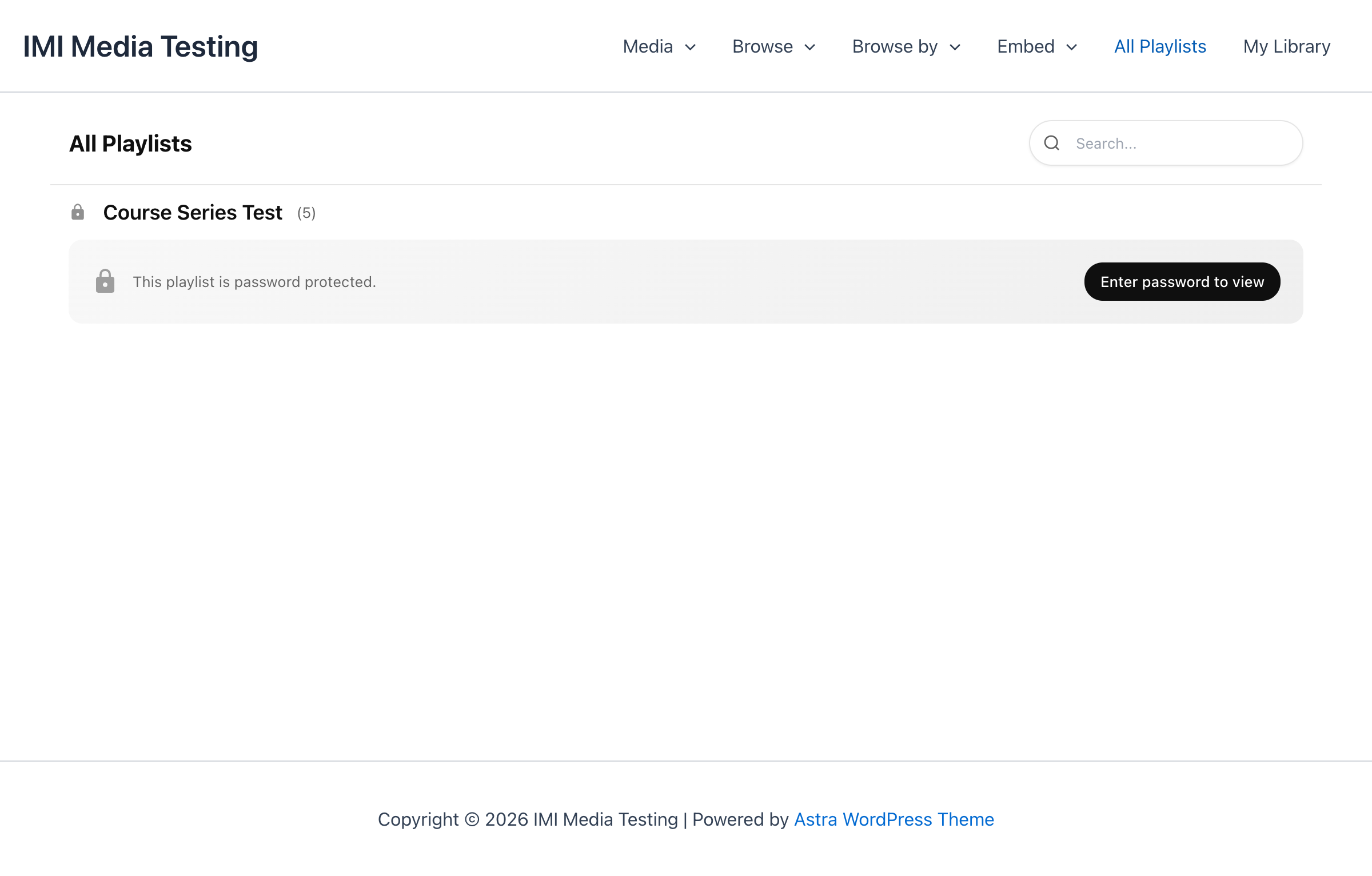
Displaying Playlists
Embed a Playlist
Opens the first item with the playlist sidebar visible.
Playlist Archive
Shows all playlists with their content.
Playlist Row
Horizontal slider of playlist cards.
Playlist Sidebar
When viewing playlist content in the modal:
Features
- Shows all items in the playlist
- Highlights current item
- Collapsible module sections
- Click to navigate between items
Navigation
- Up/Down - Move through items
- Click - Jump to specific item
- Module Headers - Expand/collapse
Ordering Items
Within WordPress
Items appear in the order they were added to the playlist by default.
Custom Ordering
Use a plugin like "Simple Custom Post Order" to drag-and-drop reorder items within each playlist.
Order by Date
In settings, configure whether items order by:
- Date added to playlist
- Post publish date
- Custom order
Playlist Settings
In Media Item Editor
| Field | Description |
|---|---|
| Playlists | Assign to one or more playlists |
| Order in Playlist | Position override |
In Playlist Editor
| Field | Description |
|---|---|
| Name | Playlist title |
| Description | Playlist summary |
| Parent | Make this a module under another playlist |
| Featured Image | Playlist thumbnail |
| Password Protection | Enable/disable |
| Password | Access password |
Progress Tracking
Per-Item Progress
Each video tracks:
- Current playback position
- Completion status (>90% = complete)
Playlist Completion
- Shows progress indicator
- Counts completed vs total items
- Updates in My Library
Best Practices
Course Structure
- Create logical modules - Group by topic or week
- Keep modules focused - 3-7 items per module
- Order logically - Build on previous content
- Use descriptive names - Clear titles help navigation
Password Protection
- Use for premium content - Gate valuable courses
- Share passwords carefully - Email to purchasers
- Consider MemberPress - For robust access control
Organization
- One series per course - Don't mix unrelated content
- Consistent naming - "Module 1: Topic" format
- Featured images - Help users identify content