MemberPress Integration
MindfulMedia integrates with MemberPress to restrict content based on membership levels.
Overview
With MemberPress integration you can:
- Gate content by membership level
- Set global defaults for all content
- Override per-item for specific media
- Override per-taxonomy for teachers/topics/playlists
- Customize locked content messaging
- Direct users to membership-specific signup pages
Requirements
- MemberPress plugin (installed and activated)
- At least one membership level created
Enabling Integration
- Go to MindfulMedia → Settings → Access Control
- Check Enable MemberPress Gating
- Configure settings
- Save
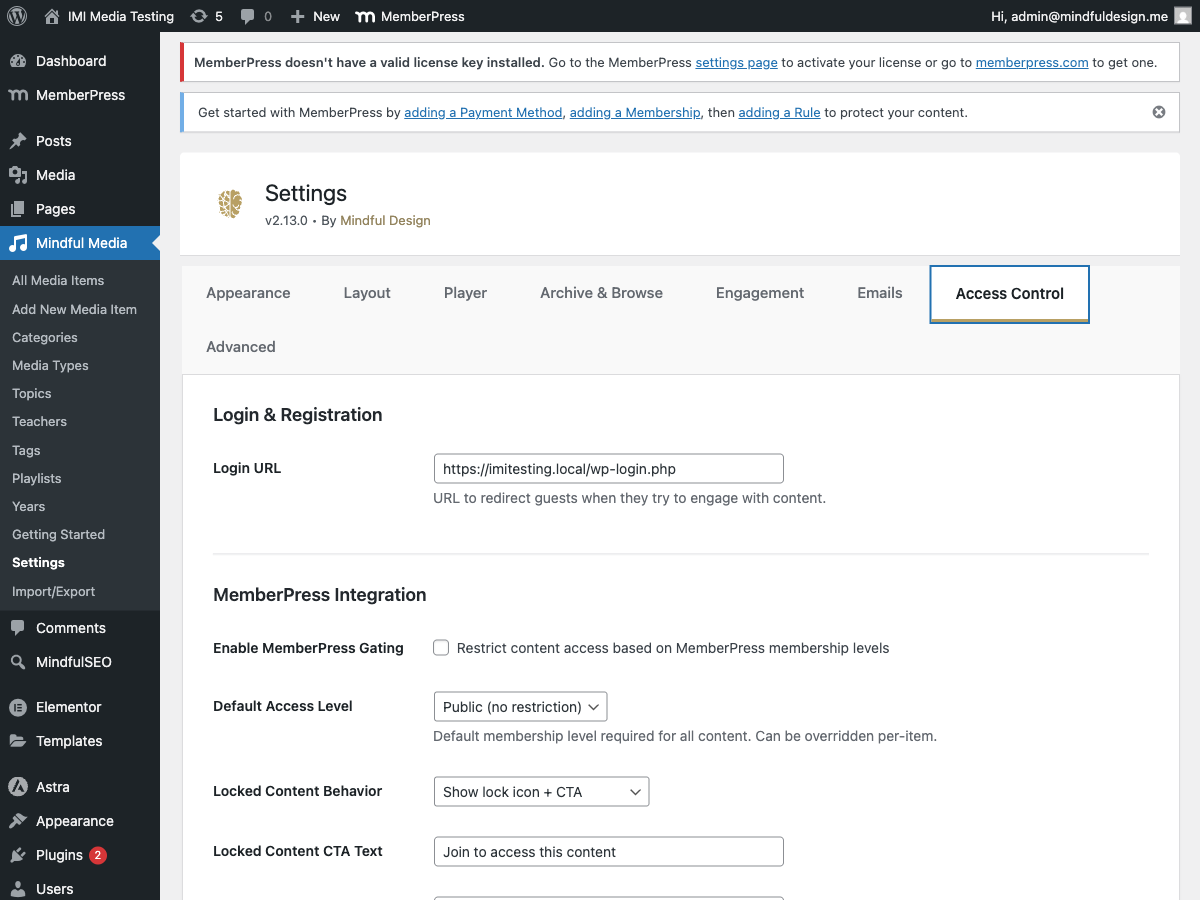
Configuration Options
Default Access Level
Set the default membership required for all content:
| Option | Description |
|---|---|
| Public | No membership required |
| [Membership Name] | Requires specific membership |
Note: This affects all content unless overridden per-item.
Locked Content Behavior
How locked content displays:
| Option | Description |
|---|---|
| Show Lock + CTA | Display lock icon with call-to-action |
| Hide Completely | Don't show locked content at all |
Locked Content CTA Text
Customize the message shown on locked content:
Default Join URL
The URL for the "Join" button on locked content.
Per-Membership URLs
Set specific signup URLs for each membership level:
| Membership | URL |
|---|---|
| Free | (Use default) |
| Premium | https://yoursite.com/join-premium |
| VIP | https://yoursite.com/join-vip |
How it works:
- User tries to access Premium-only content
- Lock message shows with "Join" button
- Button links to Premium signup page (not generic pricing)
Per-Item Overrides
Override the default on individual media items:
- Edit the media item
- Find MemberPress Access section
- Select required membership levels
- Save
Options
- Use Default - Inherit from global settings
- Public - Override to make public
- [Specific Level] - Require specific membership
Per-Taxonomy Overrides
Restrict entire taxonomies:
Teachers
- Edit the teacher
- Find MemberPress Access section
- Select required levels
- Save
Effect: All content by this teacher requires the membership.
Topics
Same process - restrict all content in a topic.
Playlists
Same process - restrict all content in a playlist.
Categories
Same process - restrict all content in a category.
Locked Content Display
When content is locked, users see:
Lock Overlay
- Lock icon
- Custom message (CTA text)
- "Join" button (links to signup)
- "Already a member? Log in" link
Guest vs. Member
| User Type | What They See |
|---|---|
| Guest | Lock overlay with signup prompt |
| Wrong Membership | Lock overlay with upgrade prompt |
| Correct Membership | Full content access |
Access Check Logic
The plugin checks access in this order:
flowchart TD
    A[User Requests Content] --> B{Password Protected?}
    B -->|Yes| C[Check Password]
    B -->|No| D{MemberPress Enabled?}
    C -->|Invalid| E[Show Password Form]
    C -->|Valid| D
    D -->|No| F[Allow Access]
    D -->|Yes| G{Per-Item Level Set?}
    G -->|Yes| H[Check Item Level]
    G -->|No| I{Per-Taxonomy Level Set?}
    I -->|Yes| J[Check Taxonomy Level]
    I -->|No| K{Default Level Set?}
    K -->|Yes| L[Check Default Level]
    K -->|No| F
    H --> M{User Has Access?}
    J --> M
    L --> M
    M -->|Yes| F
    M -->|No| N[Show Locked Content]
Login URL
Set the login page URL for "Already a member?" links:
Settings → Access Control → Login URL
Default: WordPress login page with redirect back.
Styling Locked Content
/* Lock overlay */
.mindful-media-lock-overlay {
    background: rgba(0, 0, 0, 0.8);
}

/* Lock icon */
.mindful-media-lock-icon svg {
    fill: white;
}

/* Lock message */
.mindful-media-lock-title {
    color: white;
    font-size: 1.5rem;
}

/* Join button */
.mindful-media-lock-cta {
    background: var(--mm-primary-color);
    color: white;
}

/* Login link */
.mindful-media-lock-login a {
    color: #aaa;
}
Best Practices
Membership Structure
Free Membership
├── Access to: Sample content, first lessons
├── Locked: Full courses, premium content

Premium Membership
├── Access to: All courses, all content
├── Locked: (nothing)

VIP Membership
├── Access to: Everything
├── Exclusive: 1-on-1 coaching content
Per-Level URLs
Set up landing pages for each level:
/join-free- Explains free tier/join-premium- Premium benefits and pricing/join-vip- VIP exclusive offer
Content Strategy
- Teaser Content - Some free items to demonstrate value
- Core Content - Requires basic membership
- Premium Content - Higher tier membership
- Exclusive Content - Top tier only
Troubleshooting
Content Not Locking
- Verify MemberPress is active
- Check "Enable MemberPress Gating" is on
- Verify default level or per-item level is set
- Clear any caching
Wrong Content Locked
- Check per-item settings (may override default)
- Check taxonomy settings
- Review the access hierarchy
Users Can't Access Content
- Verify user has correct membership
- Check membership is active (not expired)
- Review MemberPress subscription status