Email Notifications
MindfulMedia can send email notifications to users when new content is published in their subscribed areas.
Overview
Email notifications:
- Notify subscribers of new content
- Customizable templates for branding
- Flexible scheduling (instant, hourly, daily)
- Test functionality to verify setup
How It Works
- User subscribes to a teacher, topic, playlist, or category
- New content is published in that area
- Plugin queues notification
- Email sent based on schedule settings
Enabling Notifications
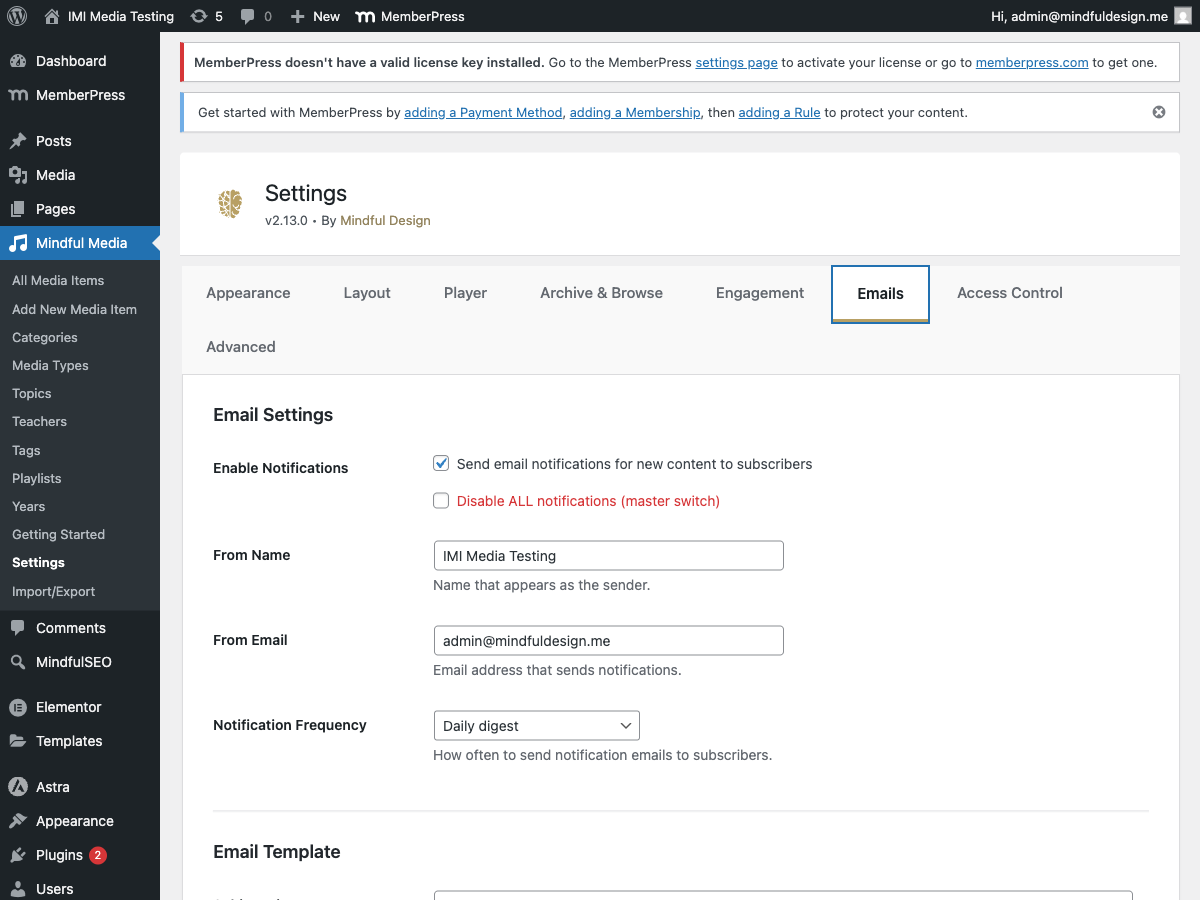
Go to MindfulMedia → Settings → Emails:
- Configure sender settings
- Customize the email template
- Test with the Send Test button
Email Settings
Sender Information
| Setting | Description |
|---|---|
| From Name | Name shown in email "From" field |
| From Email | Email address for sending |
Recommendations:
- Use a branded name: "Mindful Design"
- Use a deliverable email: "notifications@yoursite.com"
Notification Schedule
| Option | Description |
|---|---|
| Instant | Send immediately when content publishes |
| Hourly Digest | Batch into hourly summaries |
| Daily Digest | Batch into daily summaries |
Digest emails combine multiple notifications into one email.
Email Template
Header
| Setting | Description |
|---|---|
| Header Logo | Upload your logo (optional) |
| Header Text | Text if no logo (defaults to site name) |
| Header Background | Background color |
| Header Text Color | Text color |
Body
Customize the email body with placeholders:
Available Placeholders:
| Placeholder | Description |
|---|---|
{user_name} |
Recipient's display name |
{post_title} |
Media item title |
{post_excerpt} |
Media item excerpt |
{post_url} |
Link to the media item |
{term_name} |
Teacher/topic/playlist name |
{site_name} |
Your site name |
{thumbnail_url} |
Media item thumbnail |
{button_color} |
CTA button color |
{button_text_color} |
CTA button text color |
Default Template:
Hi {user_name},

New content is available from <strong>{term_name}</strong>:

<div style="background: #f5f5f5; padding: 15px; border-radius: 6px; margin: 20px 0;">
<strong>{post_title}</strong>
<p style="margin: 8px 0 0; color: #666;">{post_excerpt}</p>
</div>

<a href="{post_url}" style="display: inline-block; background: {button_color}; color: {button_text_color}; padding: 12px 24px; border-radius: 4px; text-decoration: none; font-weight: 600;">Watch Now</a>
Footer
| Setting | Description |
|---|---|
| Footer Text | Text below the content |
Default: "You received this email because you subscribed to updates. Click unsubscribe to stop receiving these emails."
Colors
| Setting | Description |
|---|---|
| Button Color | CTA button background |
| Button Text Color | CTA button text |
Test Email
Before relying on notifications, test your setup:
- Go to Settings → Emails
- Scroll to Email Preview & Test
- Enter your email address
- Click Send Test Email
Preview
The live preview shows exactly how your email will look:
- Header with logo or text
- Body content with placeholder examples
- Footer with your custom text
- Button with your colors
Troubleshooting
Emails Not Sending
Check these first:
- WordPress Email: Does
wp_mail()work? - SMTP Plugin: Do you have one configured?
- Spam Folder: Check recipient's spam
- Logs: Check WP Mail SMTP logs
Test email shows success but nothing arrives:
wp_mail()returning true only means PHP accepted it- Actual delivery depends on your mail server
- Configure WP Mail SMTP for reliable delivery
WP Mail SMTP Setup
For reliable delivery:
- Install WP Mail SMTP plugin
- Configure with a real SMTP provider:
- SendGrid
- Mailgun
- Amazon SES
- Gmail (for small volume)
- Verify with test email
Logo Not Showing
- Ensure image is uploaded to Media Library
- Use HTTPS URL for the image
- Keep logo under 60px height for best display
Unsubscribe Handling
In Email
Each email includes an unsubscribe link.
In My Library
Users can manage subscriptions in My Library → Subscriptions.
Behavior
When unsubscribed:
- Immediately stops notifications
- Removes from subscription table
- No confirmation email (clean removal)
Best Practices
Email Frequency
| Scenario | Recommendation |
|---|---|
| High-volume publishing | Daily digest |
| Weekly updates | Instant or daily |
| Breaking news | Instant |
Content Strategy
- Compelling subject lines - Include content title
- Clear preview text - Summarize the value
- Single CTA - "Watch Now" is clear
- Mobile-friendly - Most emails read on mobile
Deliverability
- Use authenticated email (SPF, DKIM, DMARC)
- Use a reputable SMTP service
- Keep sender reputation clean
- Include unsubscribe option (automatic)
Database
Notification data stored in:
| Table | Purpose |
|---|---|
wp_mindful_media_subscriptions |
Who's subscribed to what |
| WordPress options | Email settings/templates |
Hooks for Developers
// Modify email subject
add_filter('mindful_media_notification_subject', function($subject, $post, $term) {
    return 'New: ' . $subject;
}, 10, 3);

// Modify email body
add_filter('mindful_media_notification_body', function($body, $post, $term, $user) {
    return $body . '<p>Thanks for being a subscriber!</p>';
}, 10, 4);

// Before notification sends
add_action('mindful_media_before_notification', function($user_id, $post_id, $term_id) {
    // Track notification analytics
}, 10, 3);