Browse Page
The Browse Page provides a full Netflix-style browsing experience for your media library.
Overview
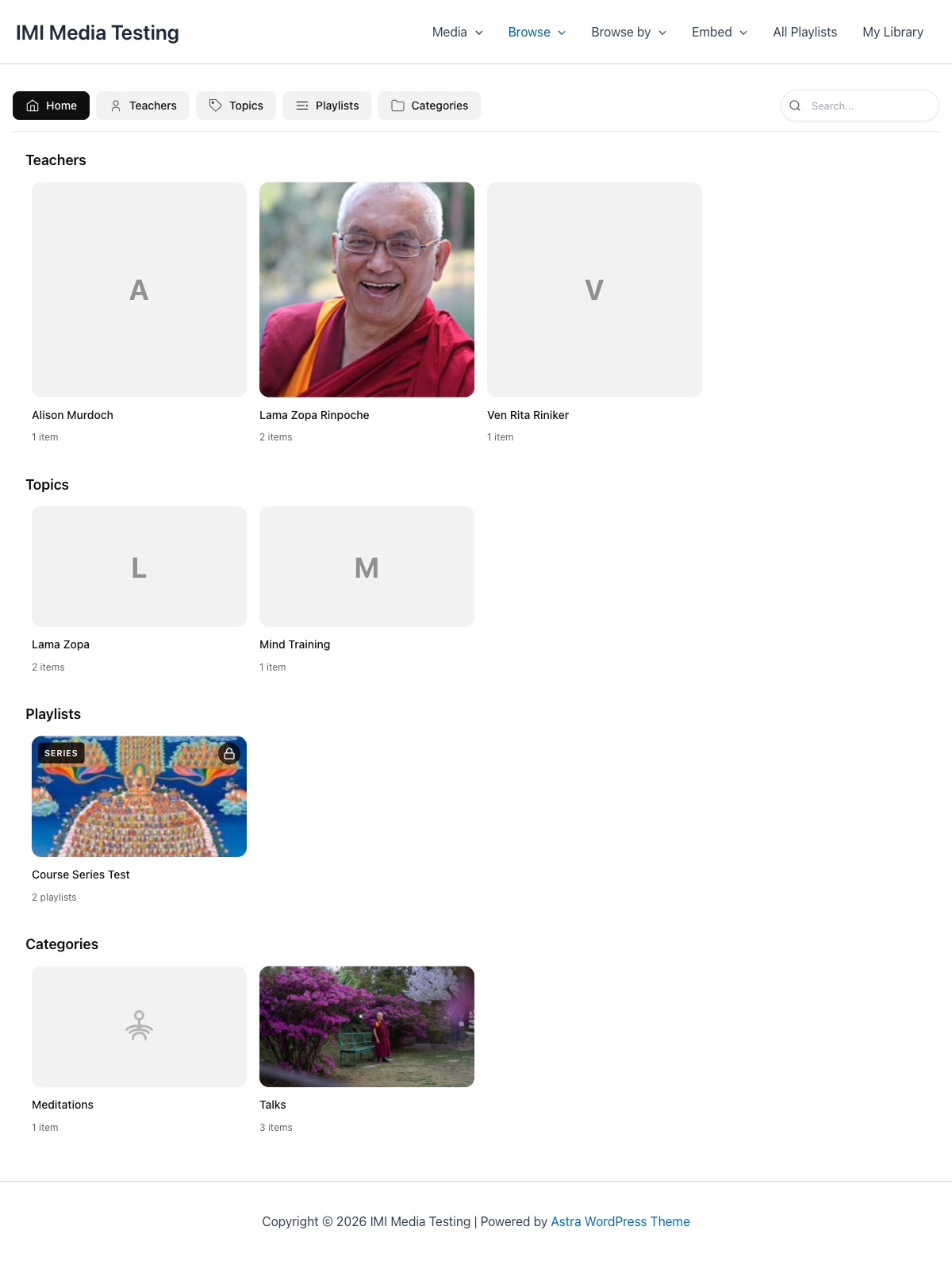
The Browse Page includes:
- Navigation Tabs - Switch between Home, Teachers, Topics, Playlists, Categories
- Featured Section - Highlight important content
- Category Sliders - Horizontal scrolling rows for each taxonomy
Adding to Your Site
Using Shortcode
Using Gutenberg
- Add a new block
- Search for "MindfulMedia Browse"
- Insert the block
Using Elementor
- Search widgets for "MindfulMedia Browse"
- Drag to your canvas
Navigation Tabs
Home Tab
The Home tab shows a discovery view:
- Teachers Section - Cards for each teacher
- Topics Section - Cards for each topic
- Playlists Section - Cards for each playlist
- Categories Section - Cards for each category
Clicking a card navigates to that term's archive page.
Individual Tabs
Clicking Teachers, Topics, Playlists, or Categories tabs shows a different view:
- Each term gets its own horizontal row
- The row contains that term's media items
- Clicking a video opens the modal player
Example: The Teachers tab shows:
Teacher A  →  [Video 1] [Video 2] [Video 3] [Video 4] →
Teacher B  →  [Video 1] [Video 2] [Video 3] →
Teacher C  →  [Video 1] [Video 2] [Video 3] [Video 4] [Video 5] →
Customization
Show/Hide Sections
In MindfulMedia → Settings → Archive & Browse:
- [x] Show Teachers section
- [x] Show Topics section
- [x] Show Playlists section
- [x] Show Categories section
- [ ] Show Media Types section
Tab Labels
Customize the navigation tab labels in settings.
Shortcode Options
<!-- Hide featured section -->
[mindful_media_browse show_featured="false"]

<!-- Hide navigation -->
[mindful_media_browse show_nav="false"]

<!-- Only specific sections -->
[mindful_media_browse sections="teachers,topics"]
Featured Section
The Featured section highlights important content at the top of the browse page.
Marking Items as Featured
- Edit a media item
- Check "Featured" in the sidebar
- Save the item
Featured items appear in the hero section.
Customizing Featured Display
In settings:
- Show Featured Section - Toggle on/off
- Featured Items Count - How many to show
Styling
The browse page uses a light theme by default:
- White/light gray backgrounds
- Dark text
- Card-based layouts
CSS Variables
--mm-bg-primary: #ffffff;
--mm-bg-secondary: #f2f2f2;
--mm-text-primary: #0f0f0f;
--mm-text-secondary: #606060;
Custom Styling
Target the browse container:
.mindful-media-browse {
    /* Your custom styles */
}

.mindful-media-browse .mm-nav-tabs {
    /* Navigation styling */
}

.mindful-media-browse .mm-section {
    /* Section styling */
}
Search
The browse page includes a search bar that:
- Searches media titles
- Filters results in real-time
- Works with AJAX for instant results
Navigation URL
Set your browse page URL in Settings → Archive & Browse → Browse Page URL.
This URL is used for:
- "Home" links in navigation
- "Back to Browse" links
- Tab navigation redirects